How to Create Polls with Slack AI and Slackbot MCP
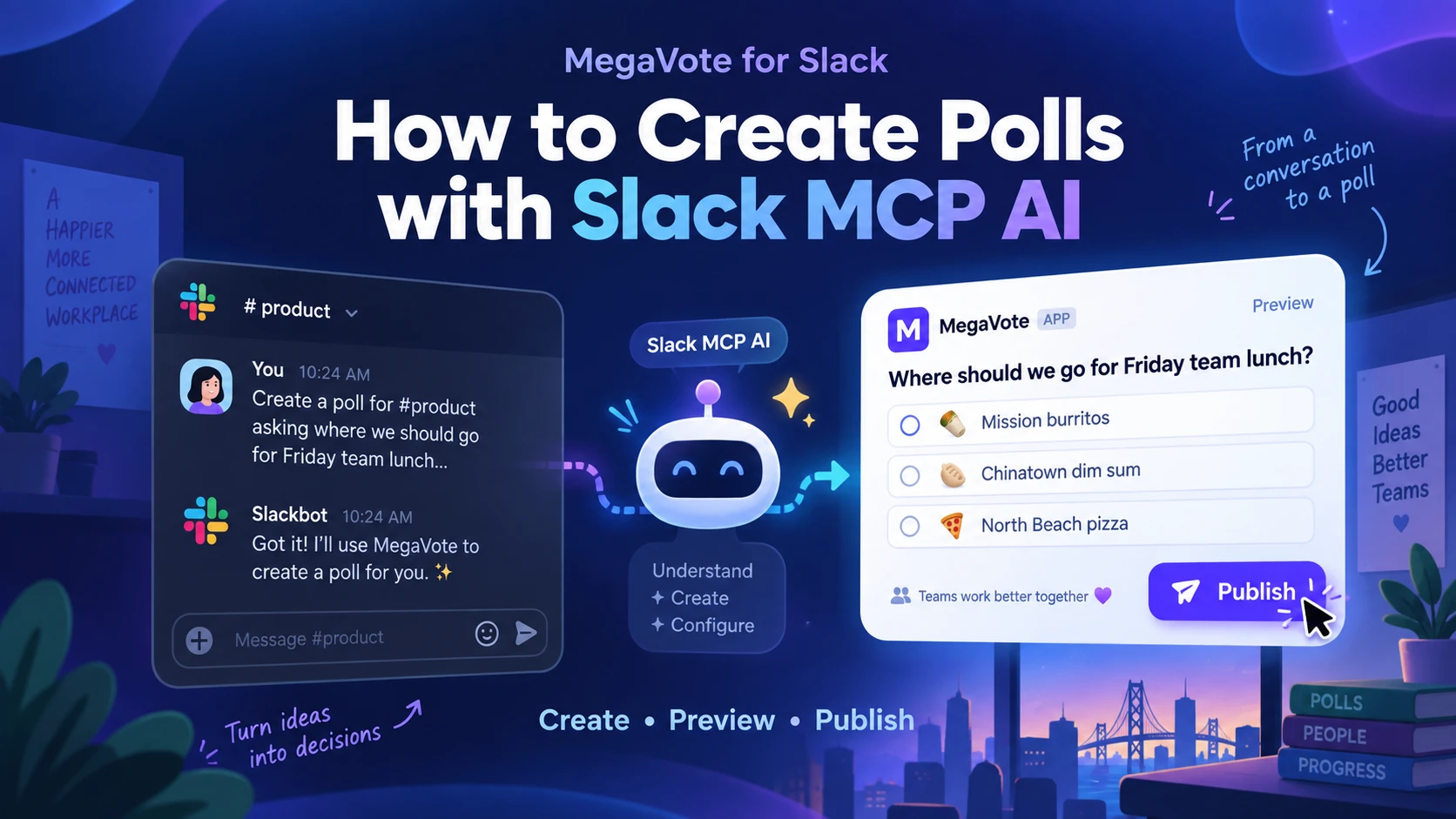
Your startup is moving fast. Lunch decisions, office days, team offsites, event signups, and quick product decisions shouldn't require another dashboard.
With MegaVote connected to Slackbot through the Model Context Protocol (MCP), you can create and manage polls using the same language you'd use with a teammate-all without leaving Slack.
Don't learn another poll syntax. Just tell Slackbot what your team needs. MegaVote is the voting engine; Slackbot is the conversational way to control it.
Preparation - Enable MegaVote for Slackbot
Before using MegaVote with Slack AI, connect MegaVote to Slackbot:

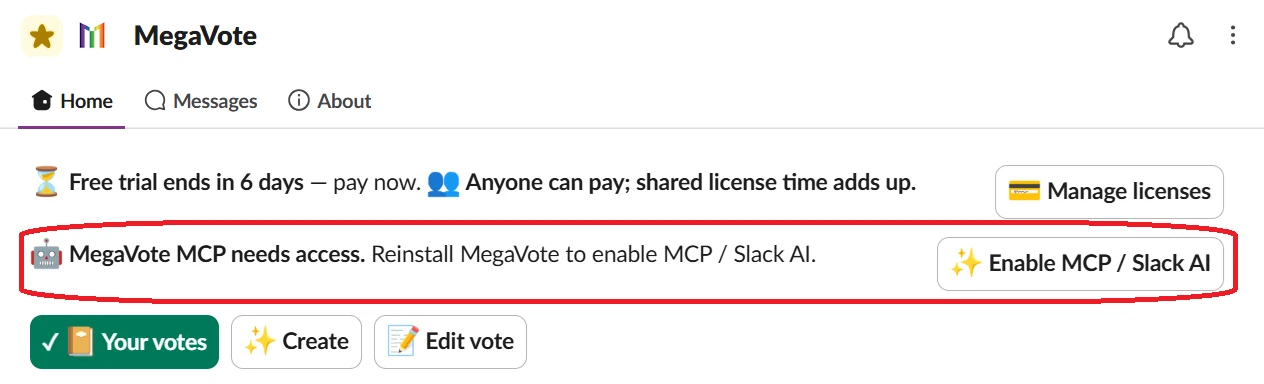
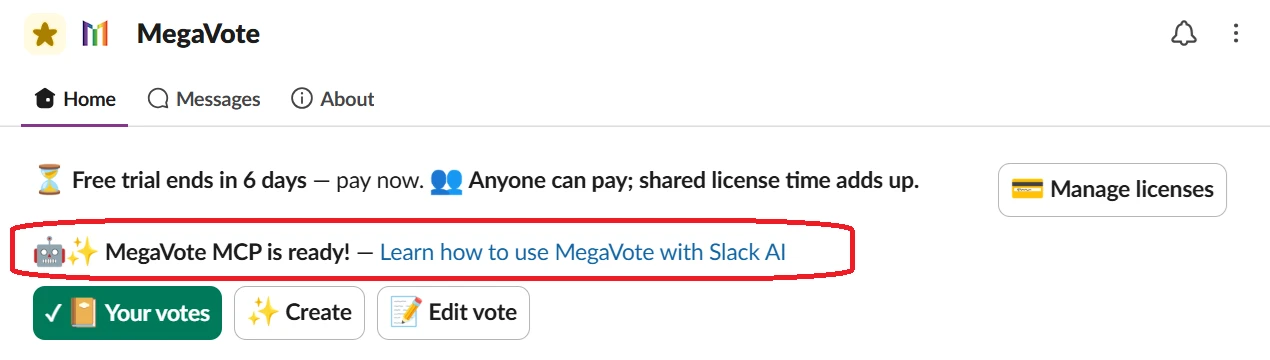
- Open the MegaVote App Home.
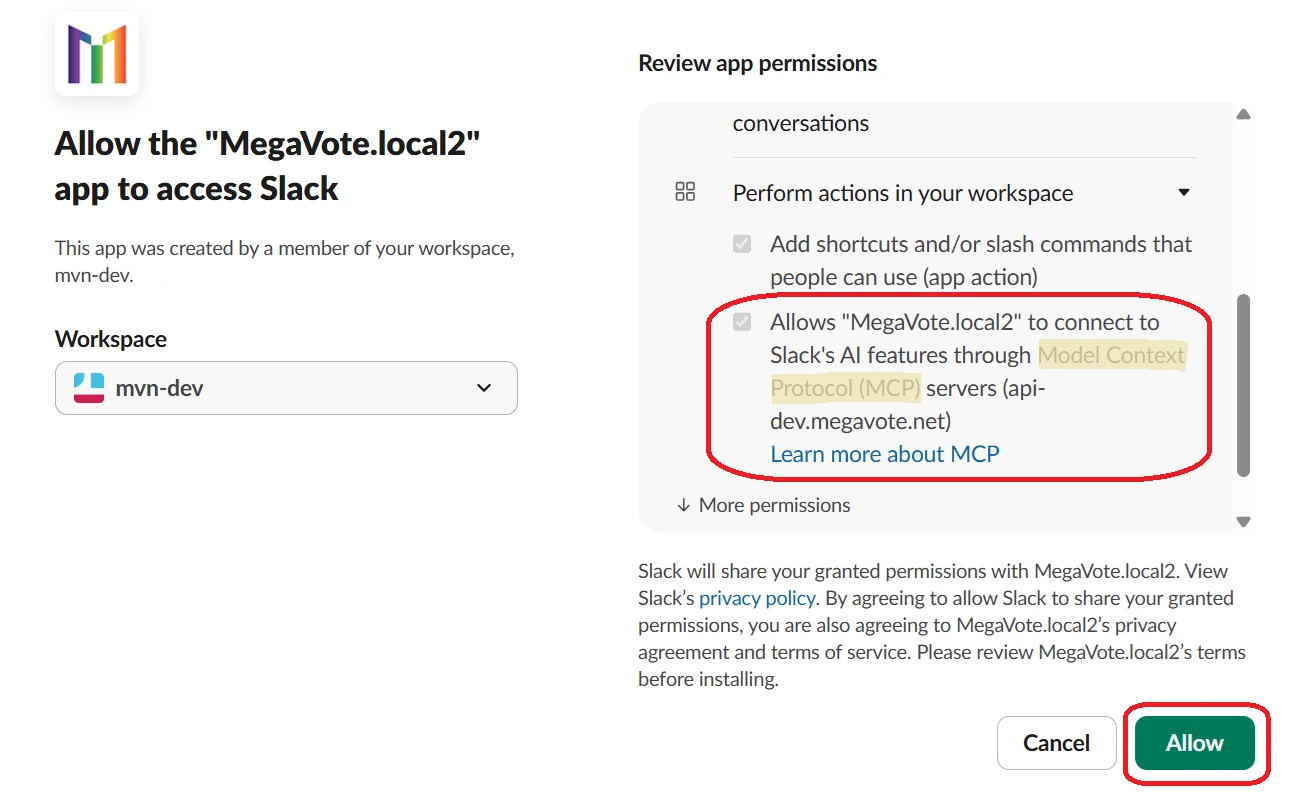
- Click the Enable MCP / Slack AI button to open a new browser window.
- Review the requested permissions and approve the connection.
- Return to Slackbot to check the installation status.
Once connected, MegaVote becomes available directly from your Slackbot conversations.
NOTE: Depending on your workspace policies, an administrator may need to approve the connection.
Create Your First Poll with Slack AI
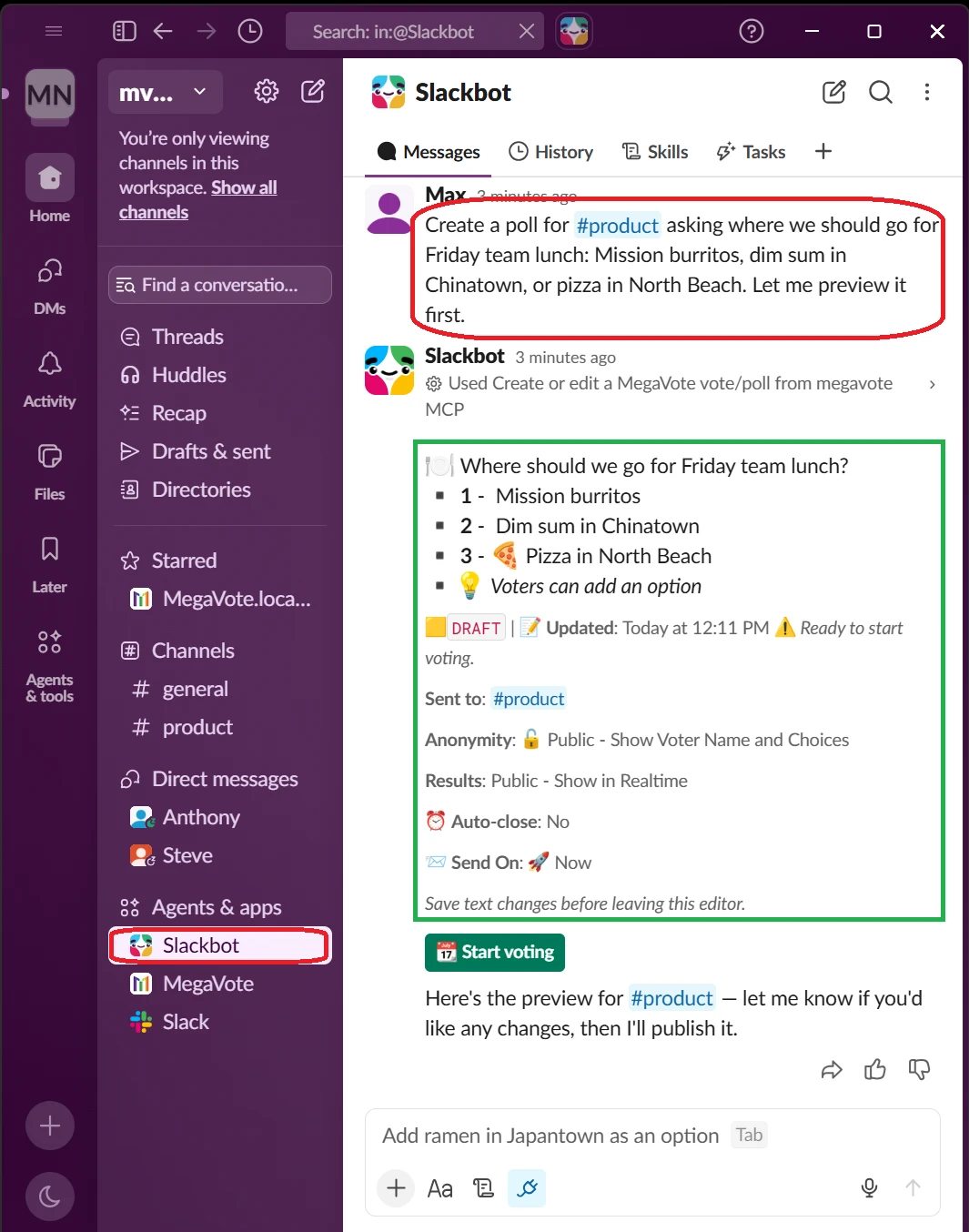
It's almost lunchtime at your SoMa office. Instead of opening a form or remembering a command, tell Slackbot the decision your team needs to make:
Create a poll for #product asking where we should go for Friday team lunch: Mission burritos, dim sum in Chinatown, or pizza in North Beach. Let me preview it first.Slackbot understands the request, and MegaVote creates a Draft for you to review. Nothing is posted in #product yet.
No slash commands. No form to fill out. No syntax to remember.
Refine Your Poll with Follow-up Prompts
Keep the lunch poll conversation going:
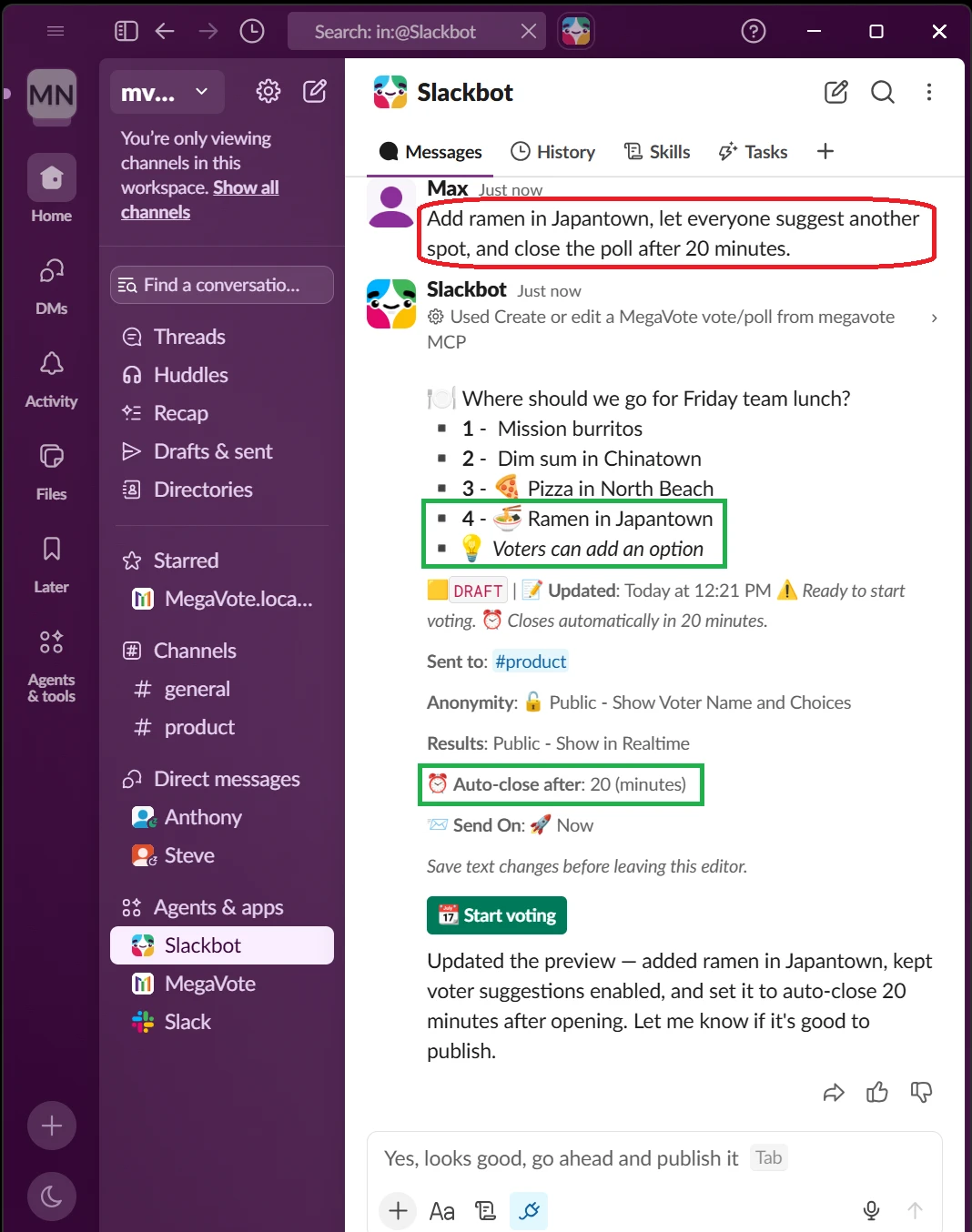
Add ramen in Japantown, let everyone suggest another spot, and close the poll after 20 minutes.You don't need to rebuild the poll. MegaVote updates the same Draft with Japantown ramen, participant-added options, and a 20-minute Auto-close, then shows the revised preview.
This is where Slack AI becomes more useful than a traditional poll form: you can refine the poll the same way you'd explain a change to a teammate.
A poll isn't a one-shot prompt. Keep talking to Slackbot until the preview is exactly what you want.
Preview First. Publish When You're Ready.
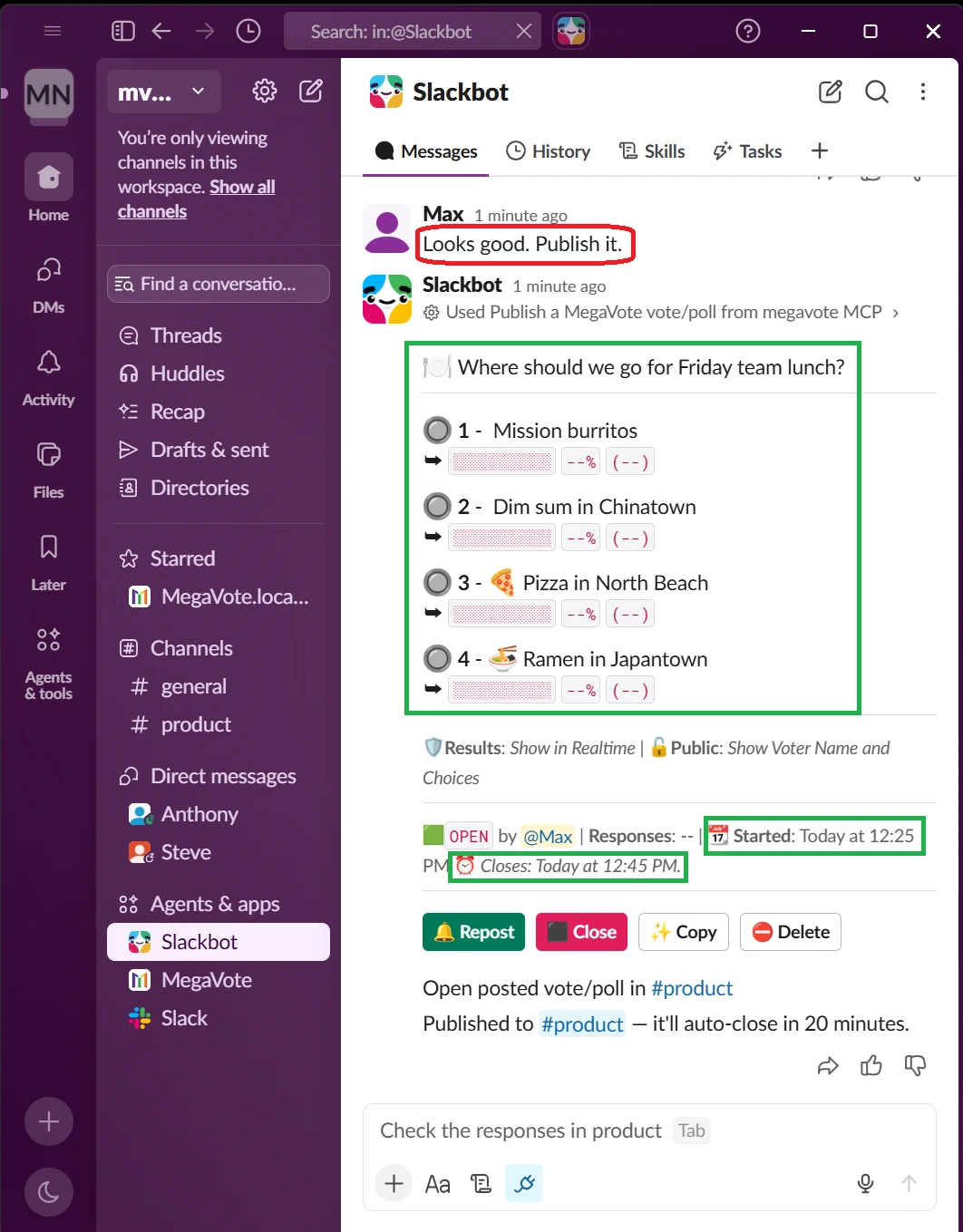
When the Draft looks right, approve it explicitly:
Looks good. Publish it.Editing a Draft does not send it automatically. After your approval, MegaVote publishes the poll in #product, where teammates vote through the familiar interactive MegaVote UI.
Slackbot handles the conversation. MegaVote handles the voting.
Check Results Without Finding the Original Message
You don't have to scroll through #product to find the poll again. Ask:
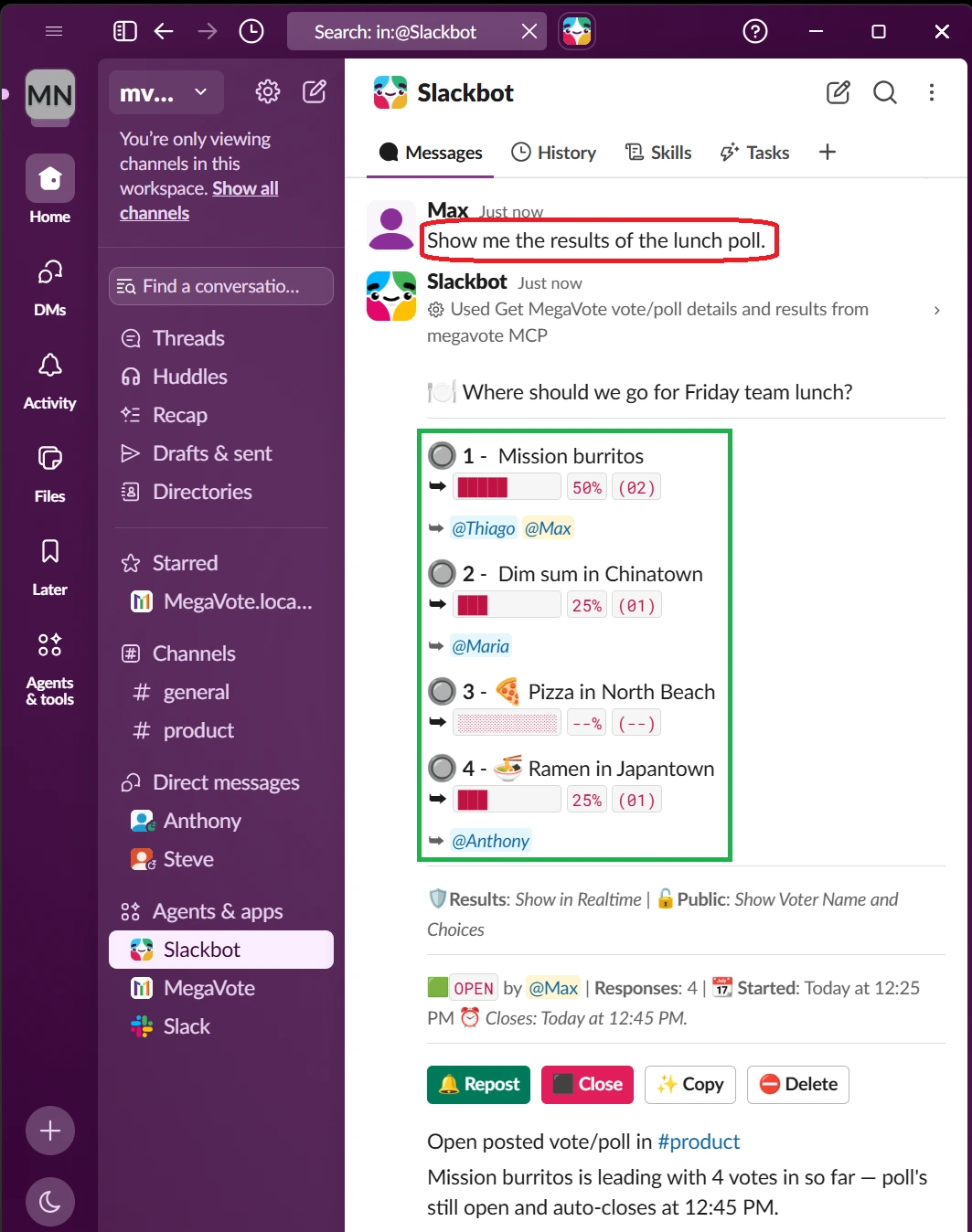
Show me the results of the lunch poll.MegaVote returns the current results according to the poll's privacy and results settings. You get the useful answer without hunting for the original message.
Create Multi-choice Polls for Team Decisions
Some decisions need more than one preference. For a Friday offsite, try:
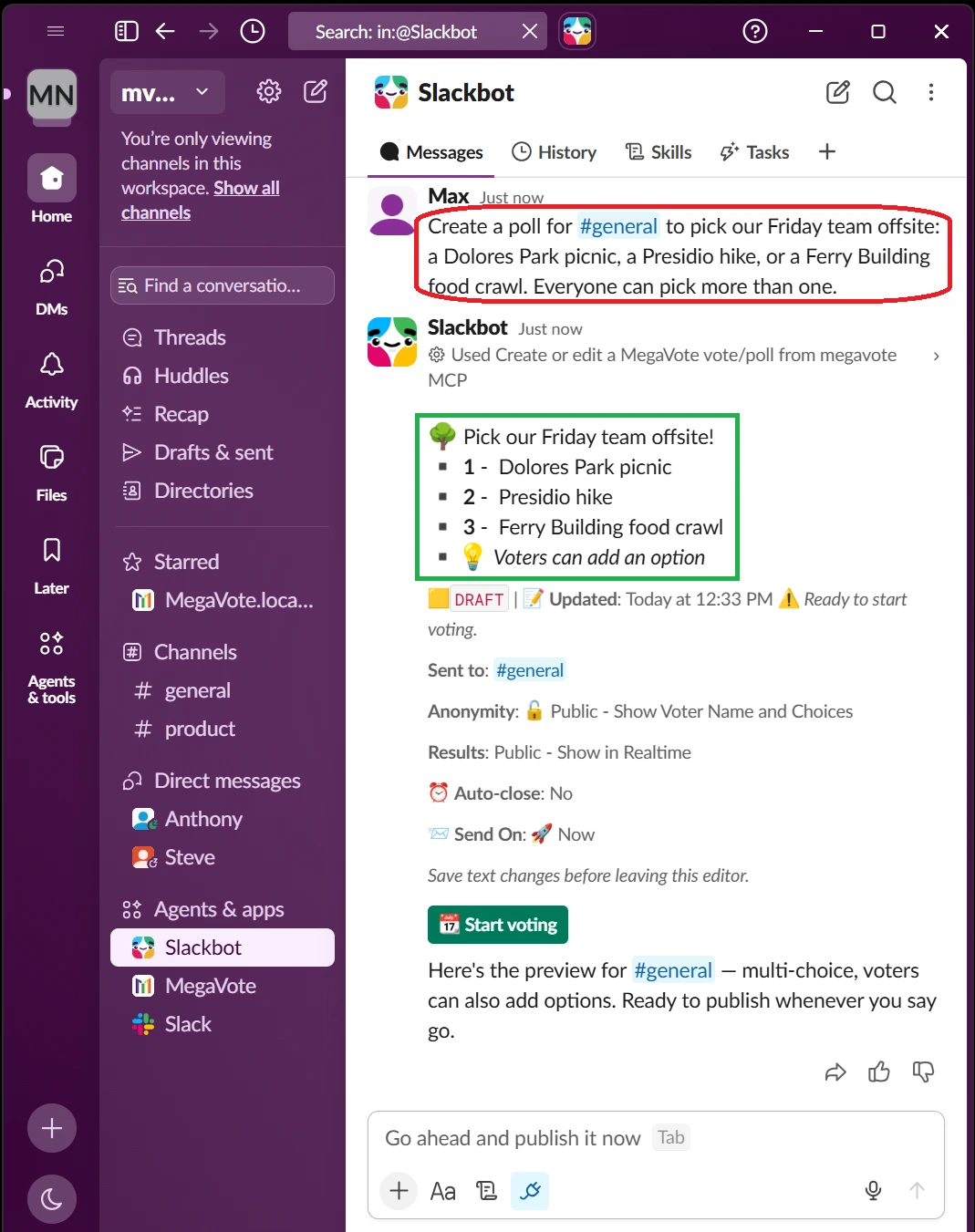
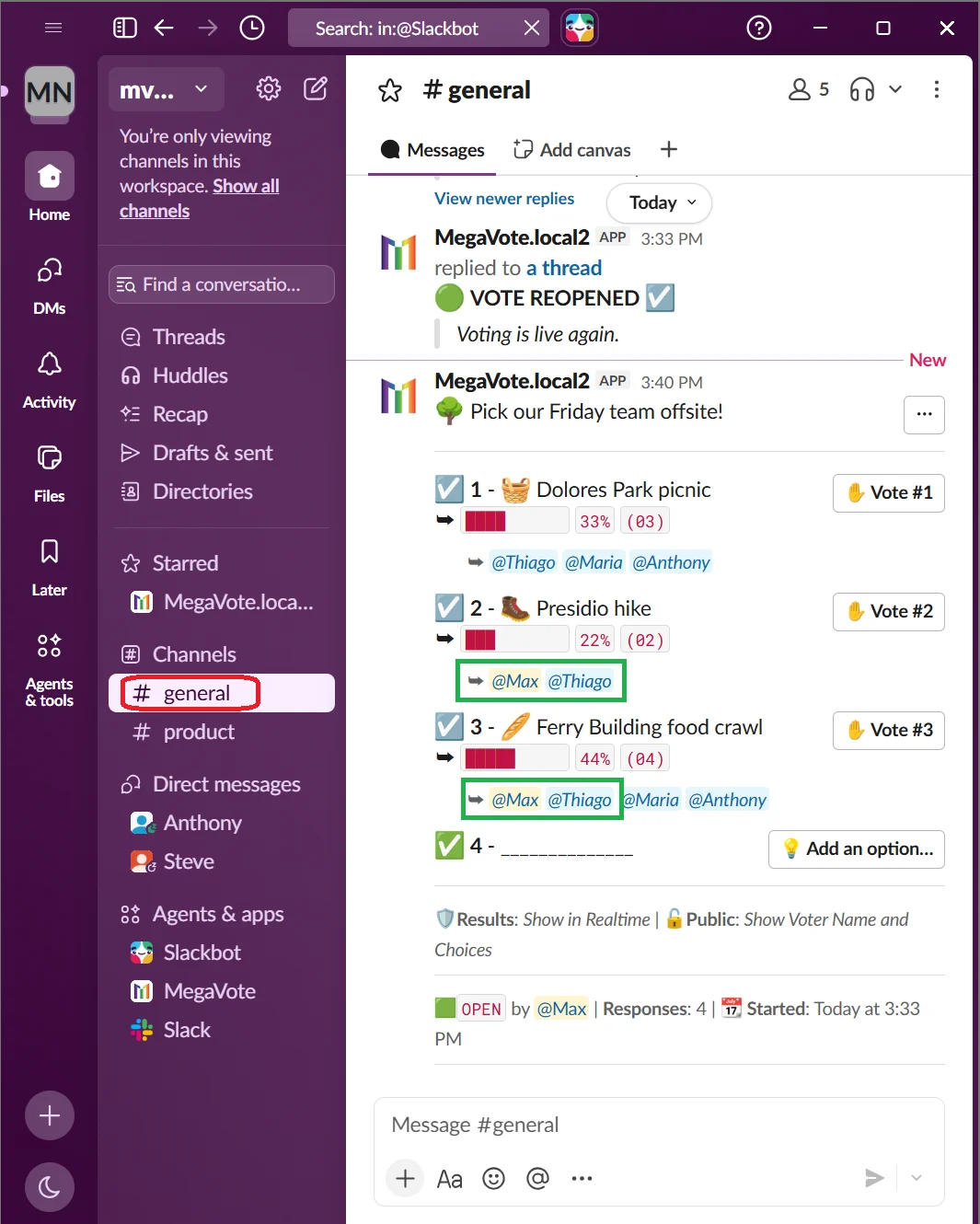
Create a poll for #general to pick our Friday team offsite: a Dolores Park picnic, a Presidio hike, or a Ferry Building food crawl. Everyone can pick more than one.MegaVote understands that everyone can select multiple choices and prepares a multi-choice poll with:
- 🧺 Dolores Park picnic
- 🥾 Presidio hike
- 🍴 Ferry Building food crawl
Review the preview, refine it if needed, and publish when you're ready.
Beyond Polls - First-Come, First-Served Signup Queues
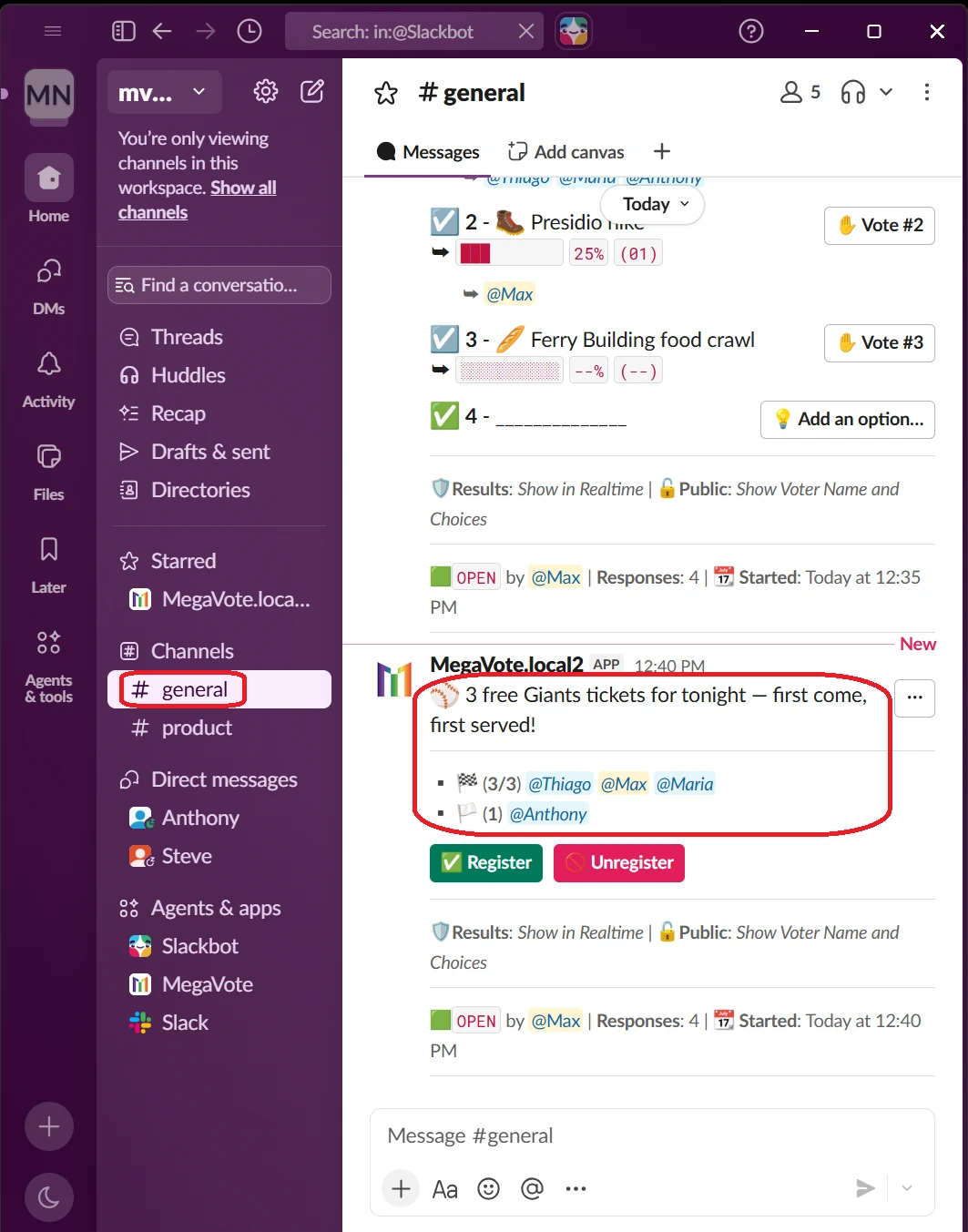
Suppose someone on the team has three extra Giants tickets for tonight. Tell Slackbot the outcome you need:
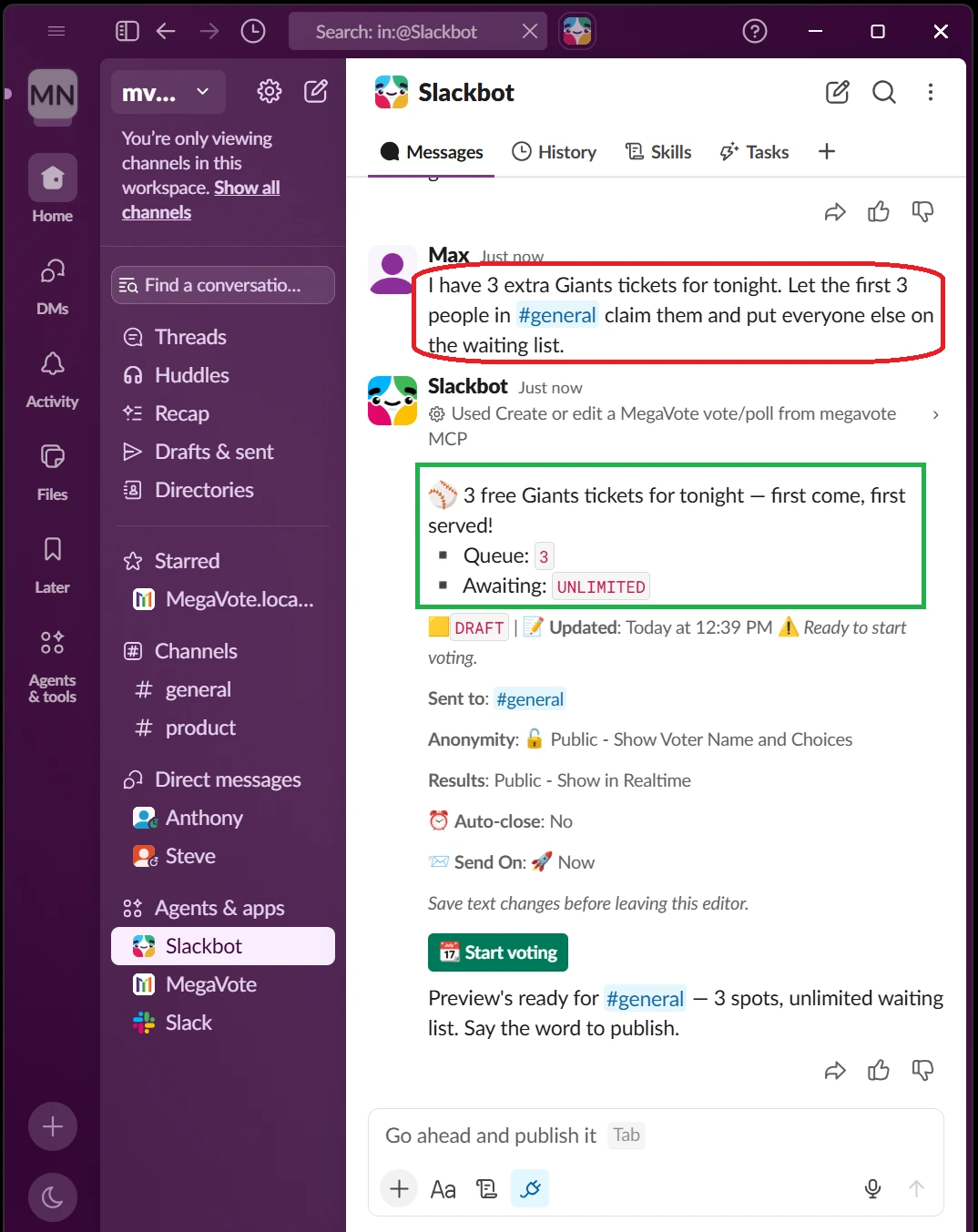
I have 3 extra Giants tickets for tonight. Let the first 3 people in #general claim them and put everyone else on the waiting list.MegaVote understands that this is a signup queue, not a Yes/No poll. It prepares three main spots on a first-come, first-served basis and places later signups on the waiting list.
No spreadsheet. No “first 3 replies win” chaos. No manually maintained waitlist.
The same approach works well for:
- Limited-seat events
- Office activities
- Ticket giveaways
- Consultation slots
- First-come, first-served signups
Schedule Polls for Your Hybrid Team
When teammates split their time between San Francisco, the East Bay, and the Peninsula, ask about office plans at a useful time:
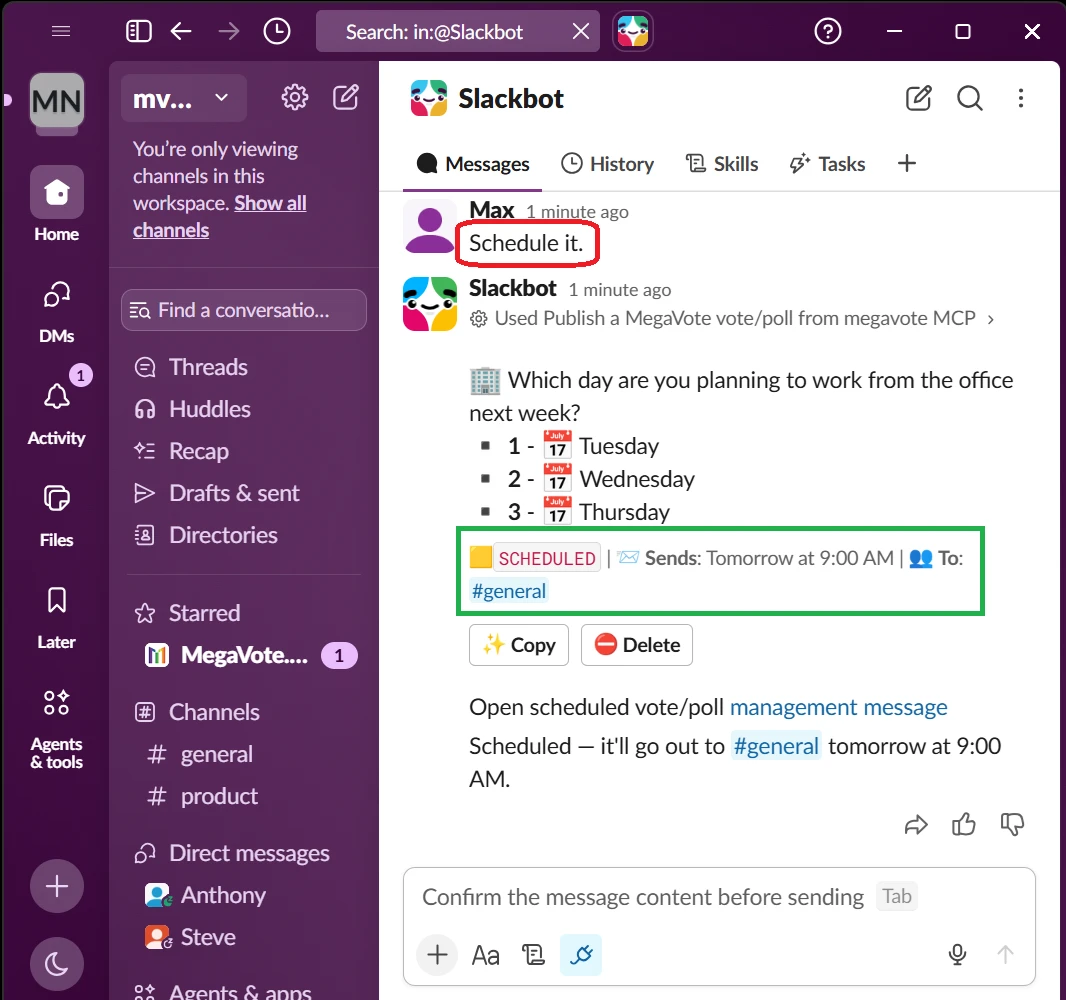
Ask #general tomorrow at 9 AM which day people plan to work from the office next week: Tuesday, Wednesday, or Thursday.Slackbot and MegaVote prepare the future send and show you a preview first. Once the question, options, channel, and timing look right, approve it:
Schedule it.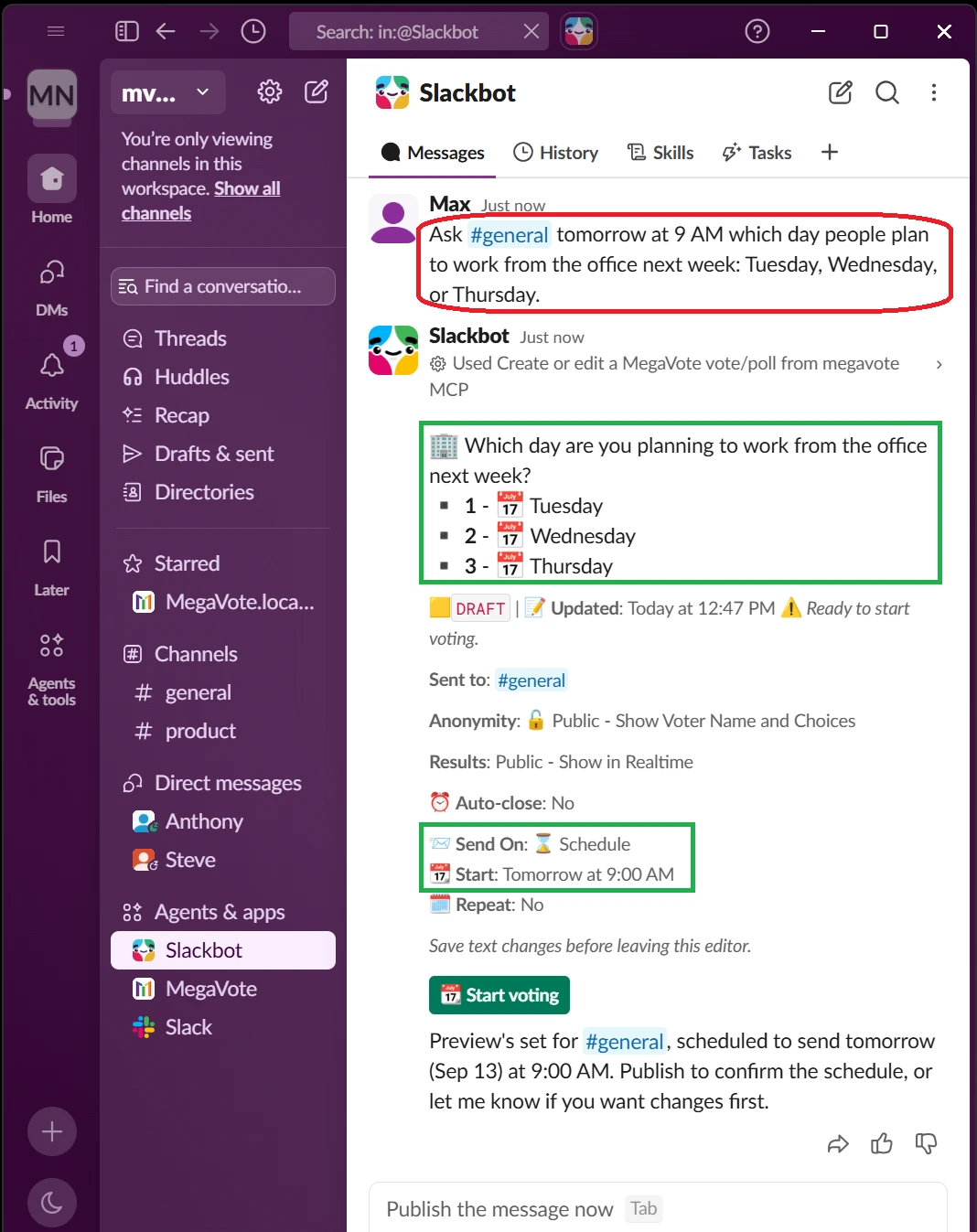
Manage Existing Polls with Natural Language
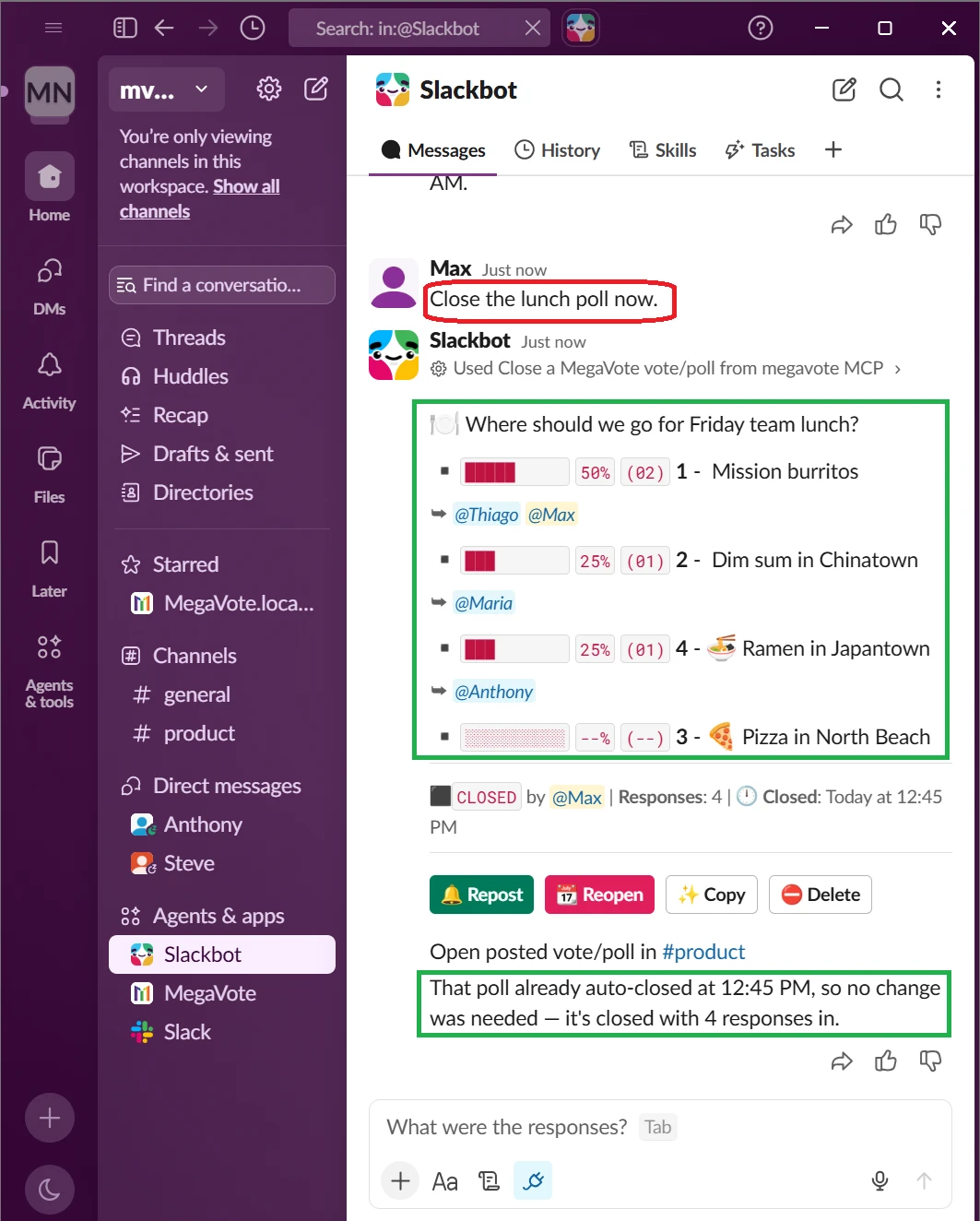
The conversation can continue after a poll is published:
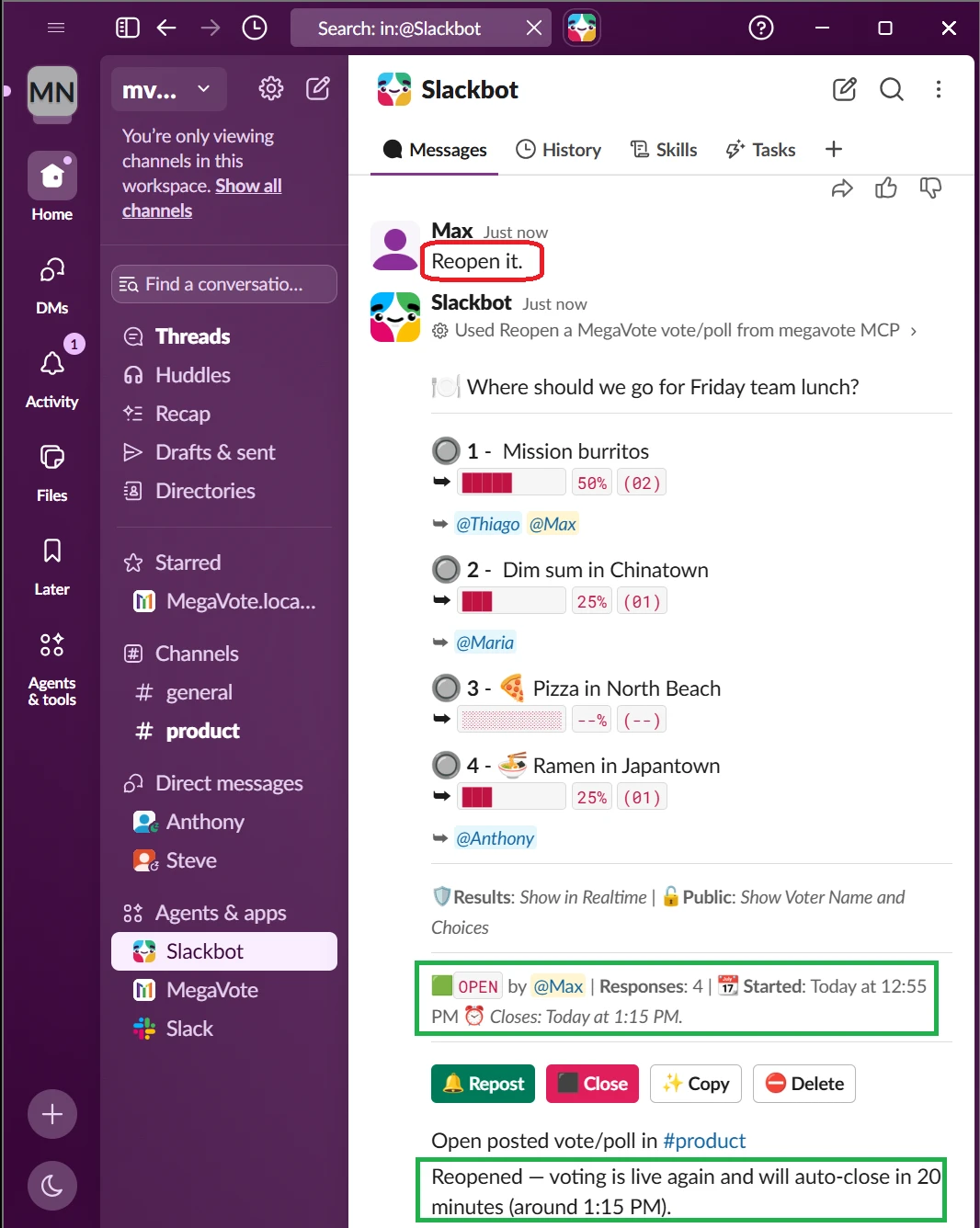
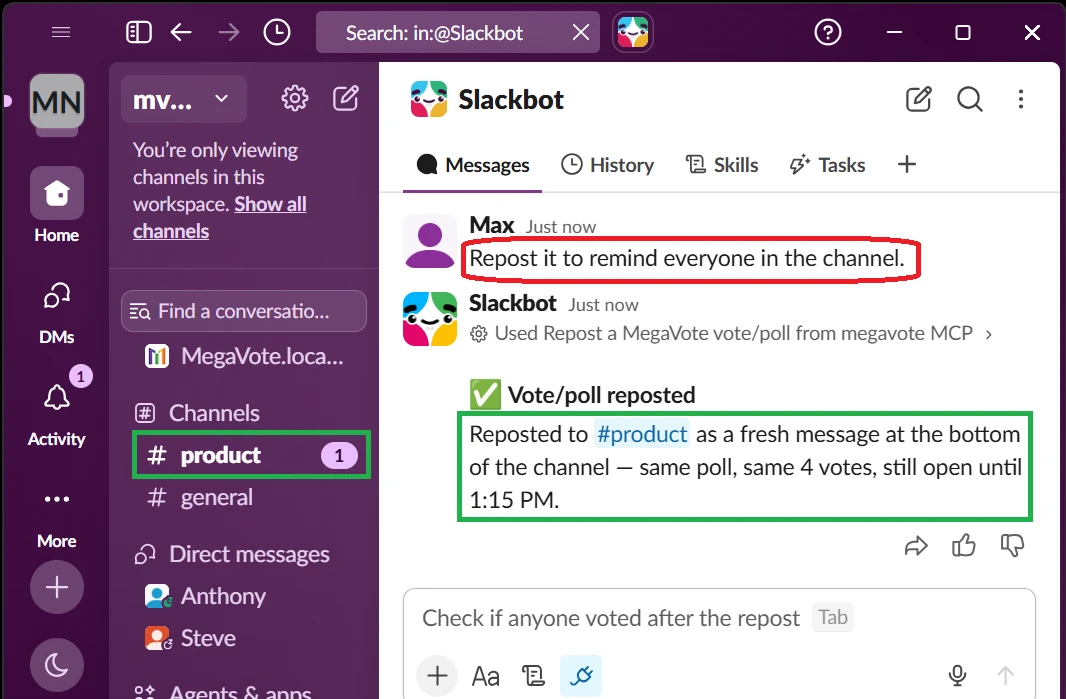
Close the lunch poll now.Reopen it.Repost it to remind everyone in the channel.Closing stops new responses while keeping the poll. Reopening lets the same poll accept responses again. Reposting brings that same poll back into view. If you want a fresh set of responses, ask MegaVote to create a new copy instead.
Find Your Existing Polls
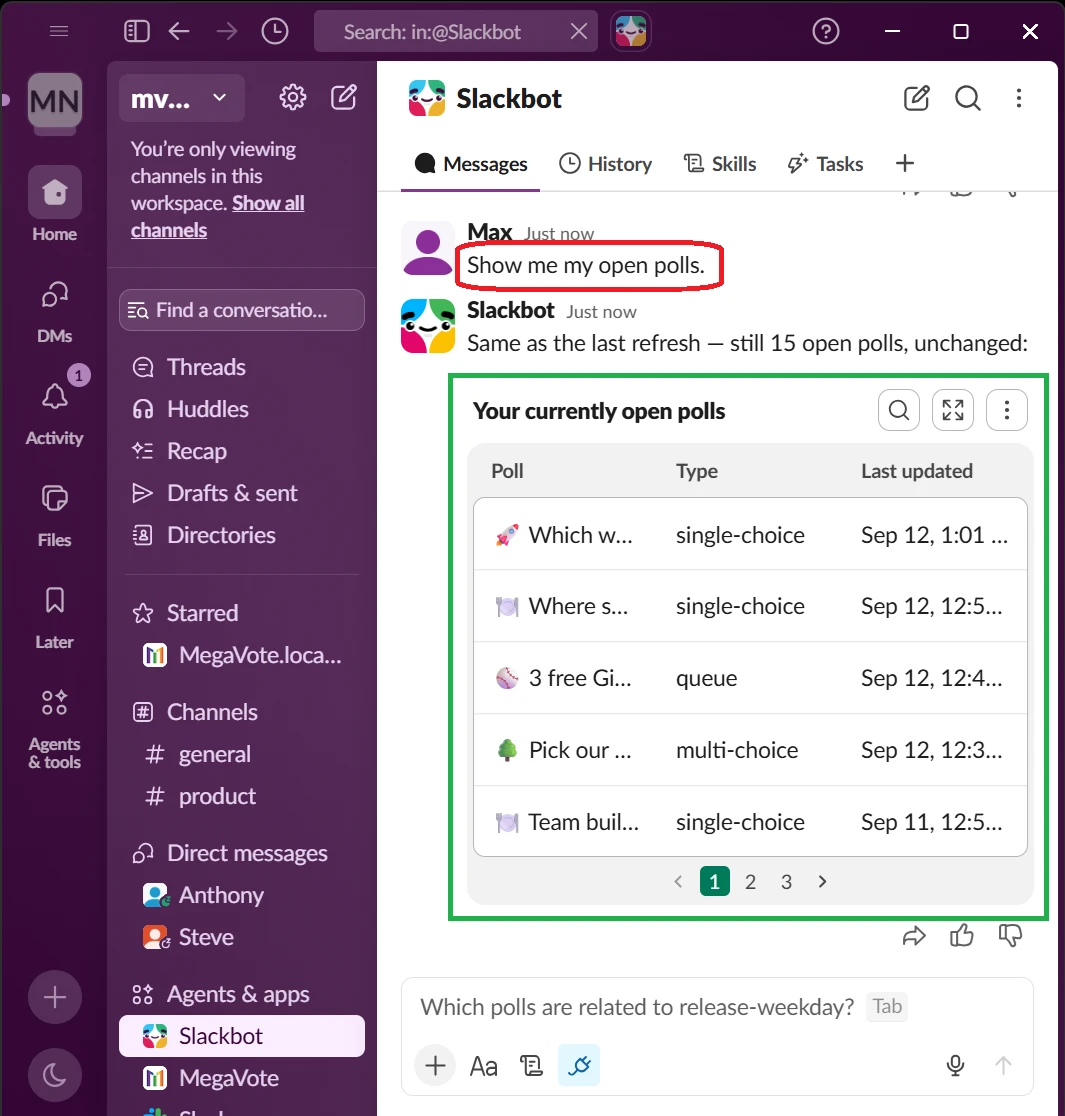
You don't need a poll ID or the original Slack message. Start with:
Show me my open polls.Then choose one conversationally:
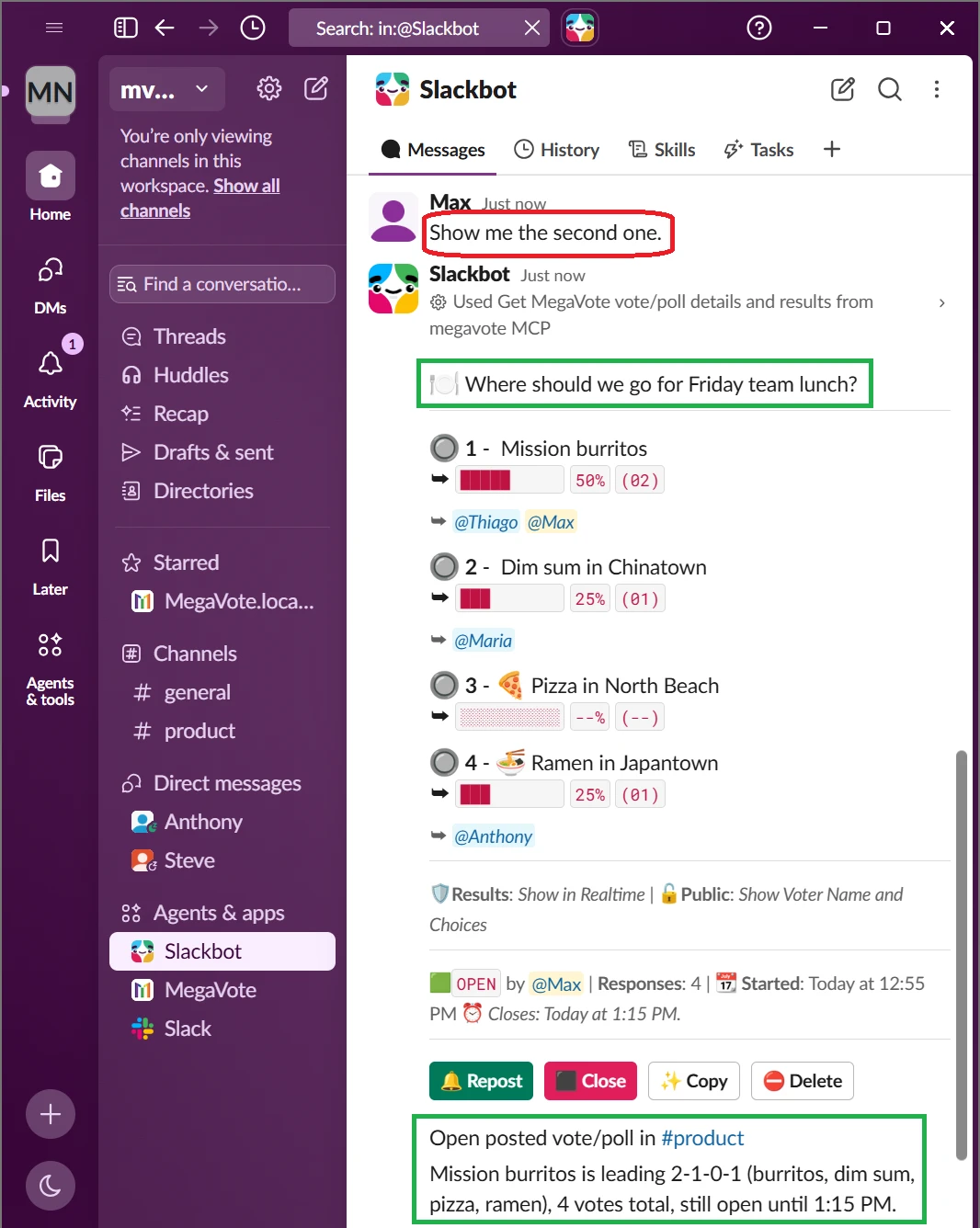
Show me the second one.Slackbot can list polls you've created and continue the conversation with the one you select.
Prompt Ideas
Use these as starting points, then refine the preview in the same conversation.
Lunch
Create a poll in #product for Friday lunch: Mission burritos, Chinatown dim sum, North Beach pizza, or Japantown ramen.Hybrid work
Ask #general tomorrow morning which day everyone plans to come into the office next week.Team offsite
Create a multiple-choice poll for our Friday offsite: Dolores Park picnic, Presidio hike, or Ferry Building food crawl.Giants tickets
I have 3 Giants tickets. Let the first 3 people claim them and put everyone else on the waiting list.Product decision
Ask #product whether we should ship the new onboarding flow this Friday or hold it until Monday.Anonymous feedback
Create an anonymous poll asking whether the new meeting schedule is working, and only show the totals after the poll closes.Don't Learn Another Poll Syntax. Just Tell Slackbot What Your Team Needs.
MegaVote already handles polls, votes, signup queues, scheduling, and results inside Slack.
Slackbot gives your team another way to control it: conversation.
Whether you're deciding where to grab lunch in San Francisco, giving away a few Giants tickets, planning the next team offsite, or collecting product feedback, start with the same thing:
Just ask Slackbot.
Already have MegaVote? Open App Home, select Enable Slackbot, and approve the connection.
New to MegaVote? Use Add to Slack below to install it in your workspace first.
 Add to Slack 🎁 FREE